By leveraging deep, built-in knowledge of the Dynamics 365 data model, it enables faster, more reliable data extraction and transformation – powered by live metadata from your own Dynamics environment.

This means BIBuilder4Dynamics is not limited to standard Microsoft structures, but also understands customizations, ISV solutions, and ongoing changes specific to your implementation.

With its intuitive and user-friendly interface, BIBuilder4Dynamics allows users to build data extracts from the ground up—without requiring in-depth technical knowledge of the underlying data structures. This significantly reduces development time and lowers the barrier to entry for working with complex Dynamics data.

With the introduction of the AI-powered assistant, BIB Bot, development becomes even more efficient. Users can interact with BIB Bot using natural language to explore data domains, locate relevant tables, and even generate complete data extracts directly within BIBuilder4Dynamics. This brings a new level of productivity and accessibility to data solution development.

Watch how it works

Silver package icon
Silver Gold Platinum Layer

Designing Data Extracts

The first step is to design the initial data extracts by combining relevant tables and selecting the columns to include in the final dataset.

BIBuilder4Dynamics leverages its deep understanding of the Dynamics 365 data model to handle the complexity behind the scenes. By automatically reading and interpreting relationships directly from your Dynamics environment, the tool eliminates the need for users to understand how tables are structured or joined. Instead, users can simply select from available, system-derived relationships and focus on building the right dataset for their needs.

This streamlined approach not only accelerates development but also reduces the risk of errors when working with complex data structures.
See the steps below for a guided walkthrough on how to create a new data extract
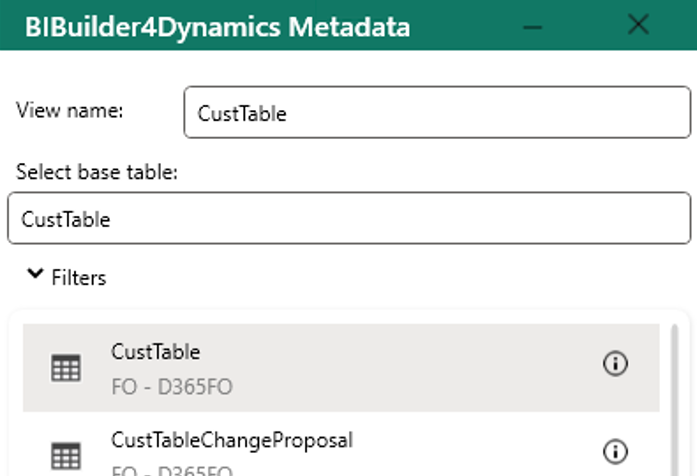
Select the base table for the data extract

Screenshot of selecting a base table in BIBuilder4Dynamics Metadata

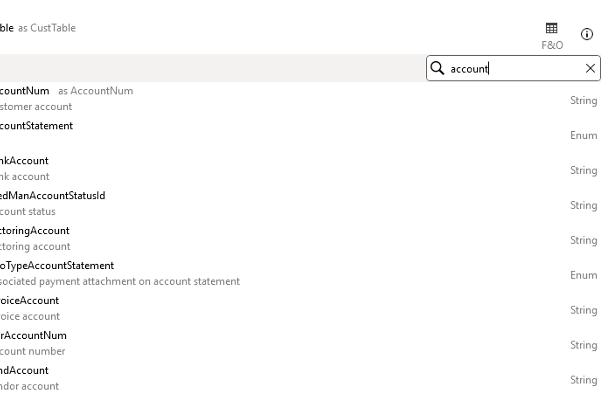
Search for and add columns from the base table

Screenshot of searching table fields in BIBuilder4Dynamics

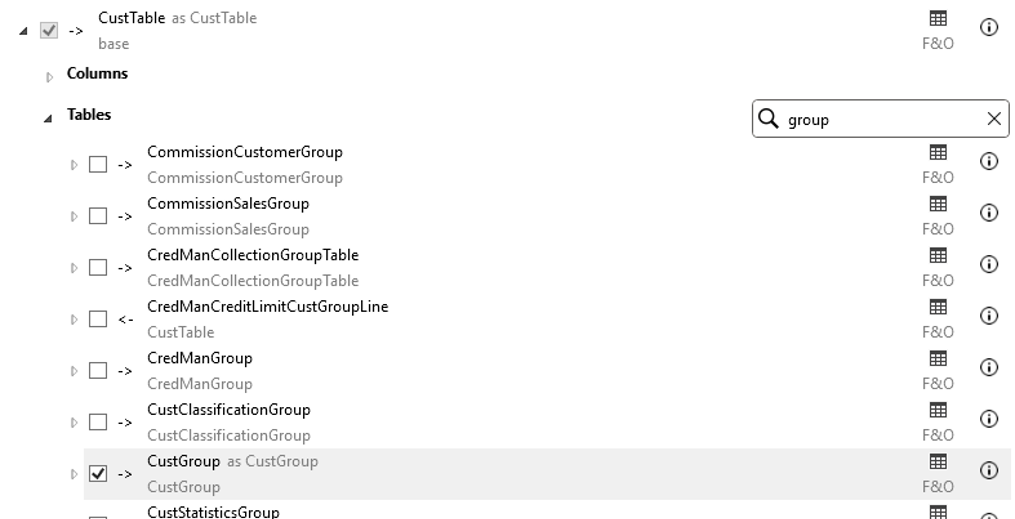
Search for and add related tables

Screenshot of searching related tables in BIBuilder4Dynamics

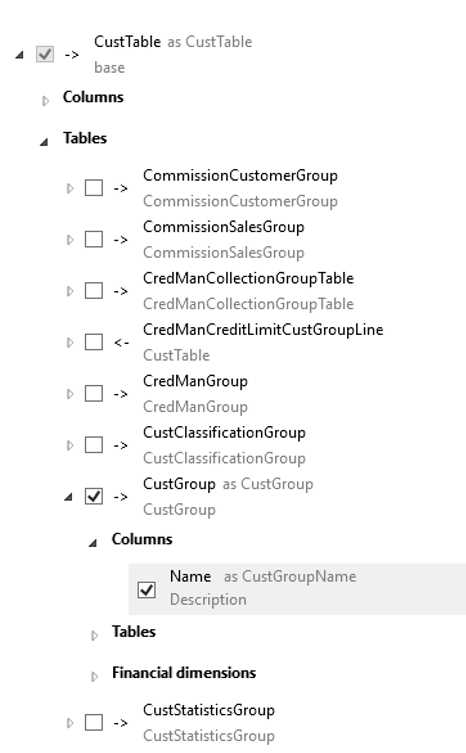
Add columns from the related tables

Screenshot of the table and column tree in BIBuilder4Dynamics

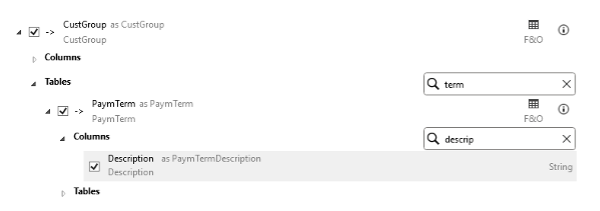
Continue expanding the extract

By adding relationships not only from the base table, but also from previously added tables—allowing you to build a multi-level, tree-like structure

Screenshot of selecting columns in BIBuilder4Dynamics

Fabric notebook

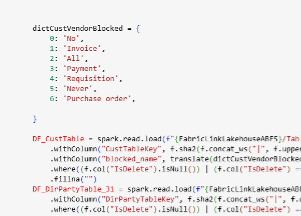
BIBuilder4Dynamics automatically generates a Fabric notebook to load data from Fabric Link into a flattened structure in a Fabric Lakehouse

Generated PySpark code from BIBuilder4Dynamics

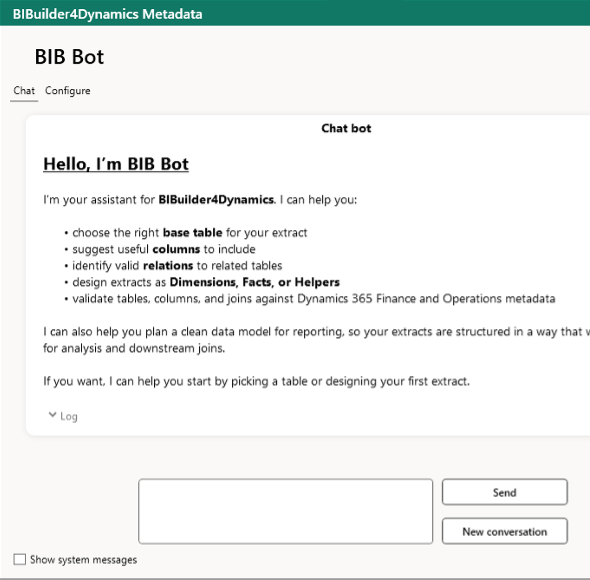
BIB Bot – THE BIBuilder4Dynamics AI Agent

BIB Bot is an AI-powered assistant with direct access to the metadata of the specific Dynamics 365 Finance and Operations environment connected to BIBuilder4Dynamics. This means it goes beyond standard Microsoft data models—incorporating knowledge of custom tables, ISV solutions, and ongoing system updates unique to your implementation.

Importantly, BIB Bot operates exclusively on metadata and does not access or expose any actual business data, ensuring a secure and controlled experience.

With this deep contextual understanding, BIB Bot can answer questions about data structures, relationships, and data domains in natural language. It can also assist in building data extracts directly within BIBuilder4Dynamics – always requiring user verification before any changes are applied.

Below are examples of typical questions and answers when working with BIB Bot.

Screenshot of the BIB Bot assistant in BIBuilder4Dynamics
Gold package icon

Designing Data Warehouse

BIBuilder4Dynamics enables the creation of a robust data warehouse built primarily on the previously defined data extracts, while also supporting integration with additional data sources where needed.

The platform automates time-consuming and repetitive tasks such as data movement, incremental (delta) loading, and dimensional lookups. This allows developers to shift their focus from technical plumbing to implementing business logic, calculations, and value-adding transformations.

By reducing manual effort and complexity, BIBuilder4Dynamics helps ensure a more efficient, consistent, and scalable data warehouse design.
Below are the steps for adding tables to the data warehouse.
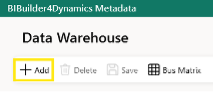
Add a new data warehouse table

Screenshot of the Data Warehouse toolbar in BIBuilder4Dynamics

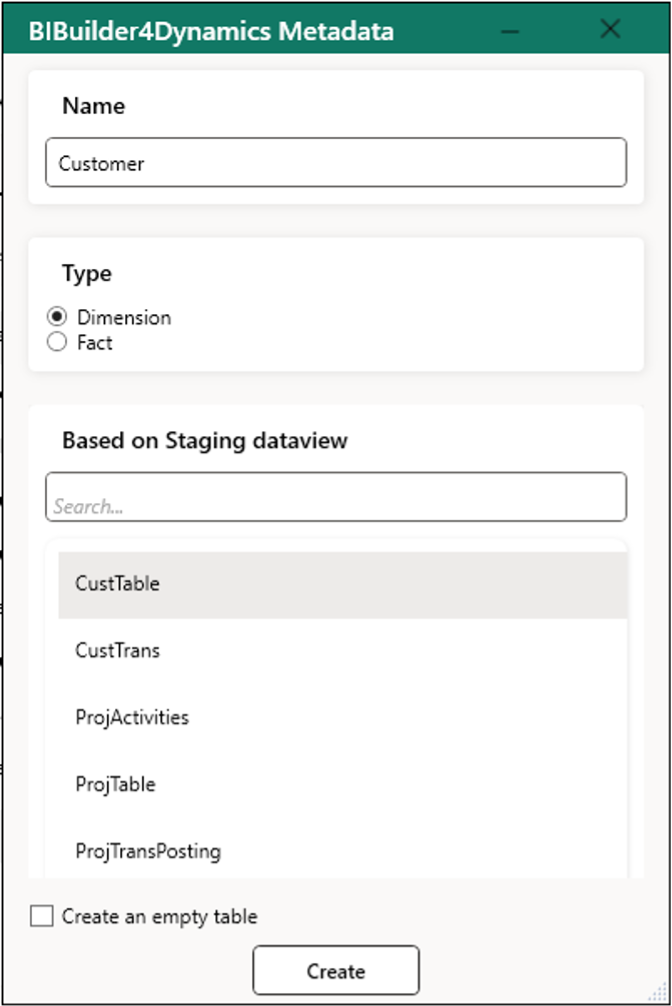
Base the table on an existing data extract, and define its name and type

Screenshot of creating a new view in BIBuilder4Dynamics

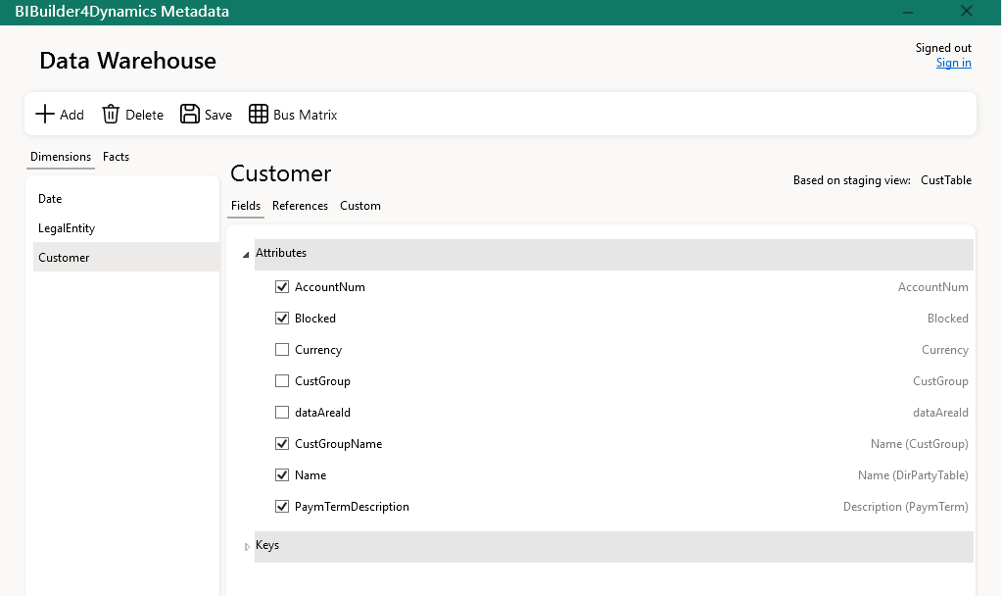
Select the fields to include in the data warehouse table

Screenshot of the Data Warehouse view in BIBuilder4Dynamics

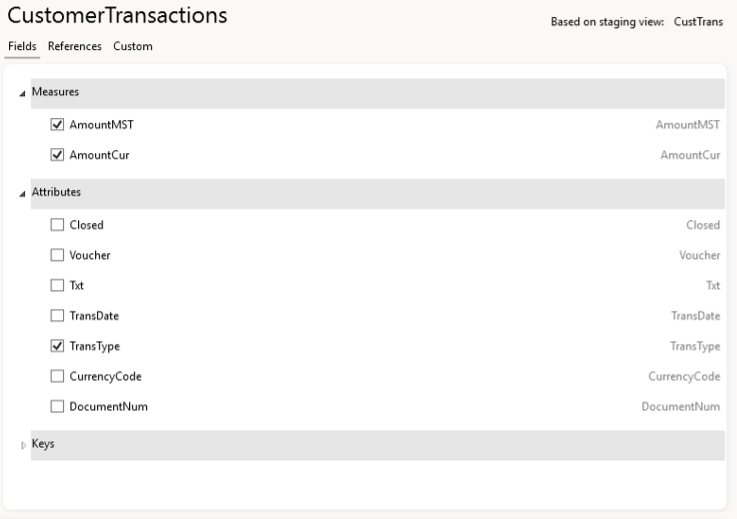
Repeat the process to create fact tables

Screenshot of selecting fields for CustomerTransactions in BIBuilder4Dynamics

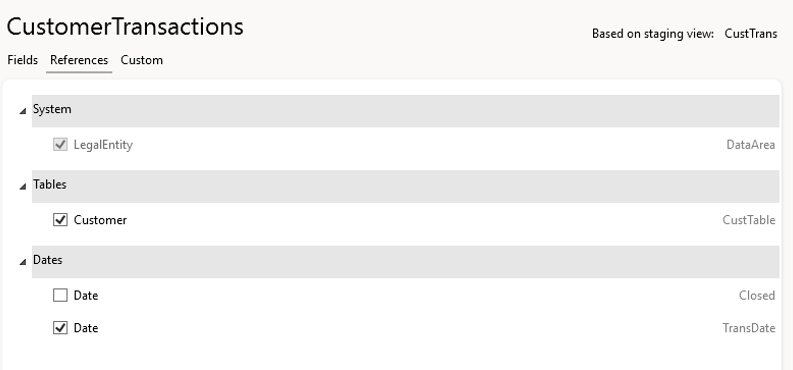
Add references to dimension tables

Screenshot of CustomerTransactions fields and relations in BIBuilder4Dynamics

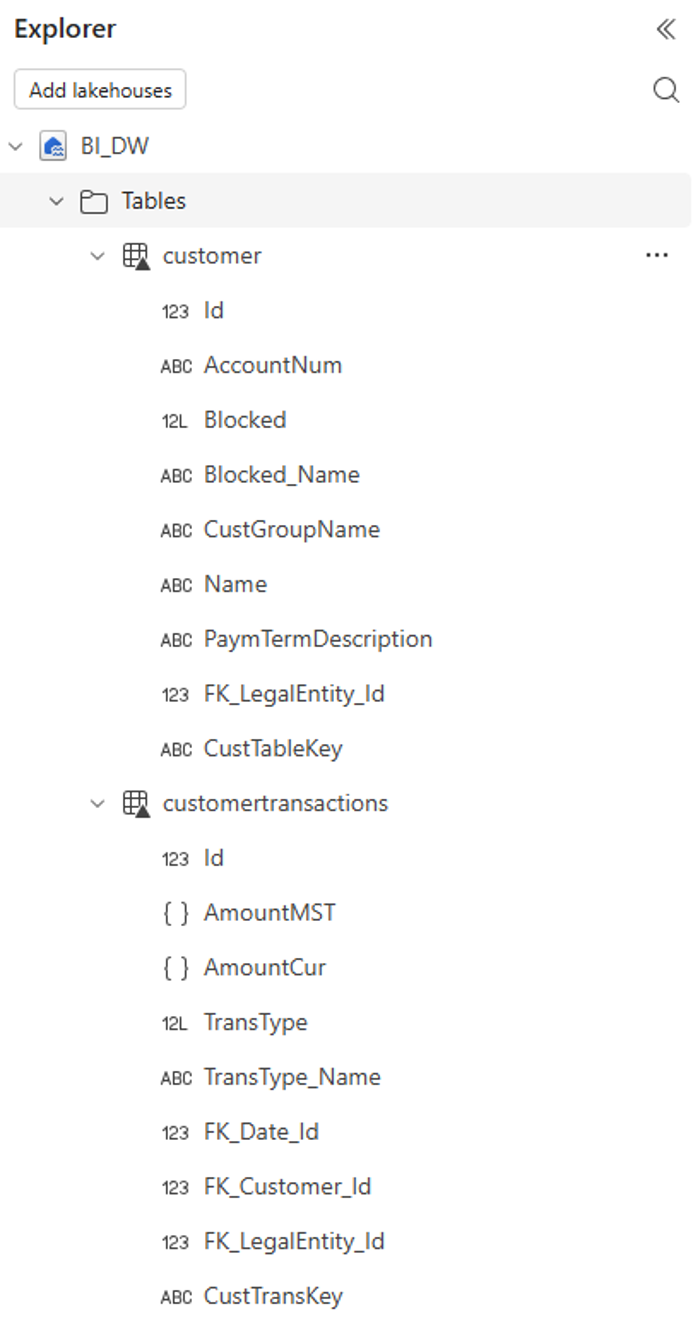
Fabric notebook

BIBuilder4Dynamics automatically generates a Fabric notebook to transform data extracts into fact and dimension tables, including the creation of integer surrogate keys

Screenshot of the data model explorer in BIBuilder4Dynamics

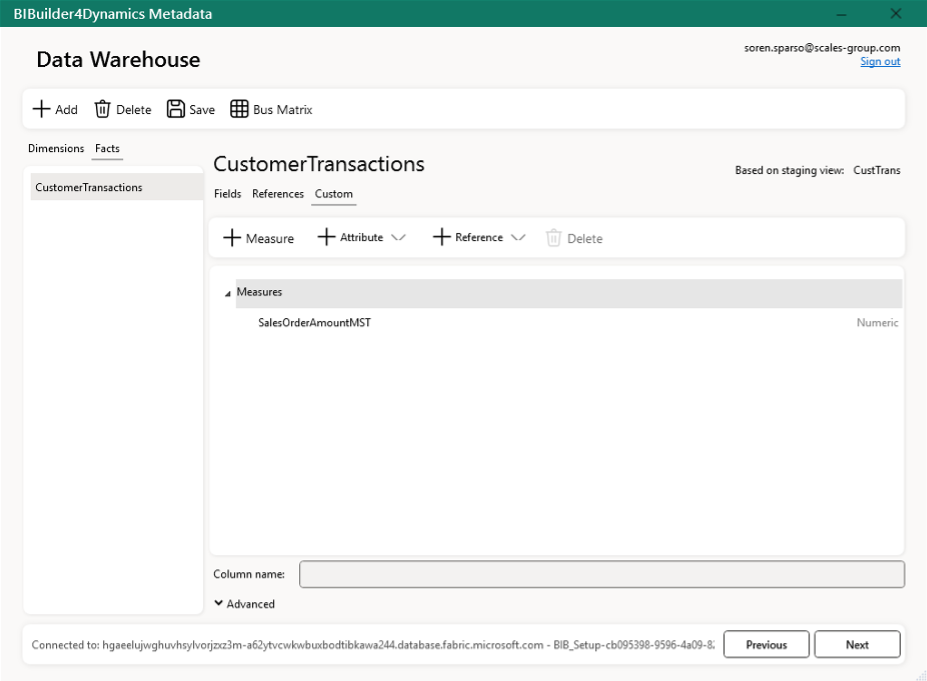
Define custom measures directly in BIBuilder4Dynamics

Screenshot of the CustomerTransactions setup in the BIBuilder4Dynamics Data Warehouse

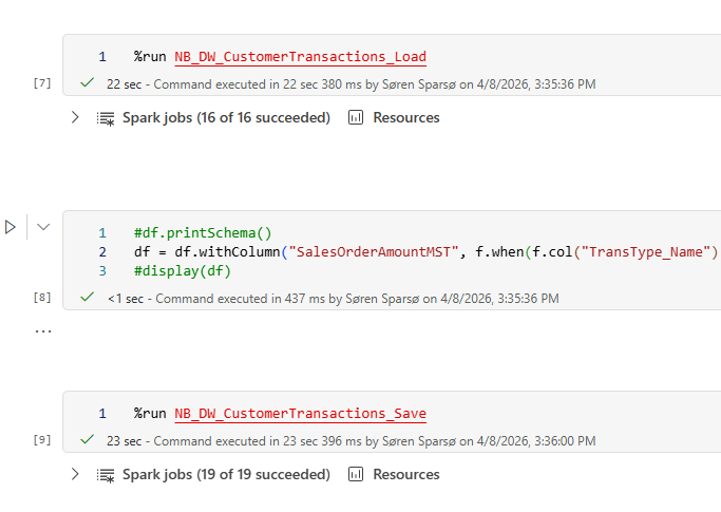
Implement custom logic in notebooks

Screenshot of a Spark notebook loading CustomerTransactions data
Platinum package icon

Building Semantic Models

When building semantic models with BIBuilder4Dynamics, the focus remains the same: automating repetitive and time-consuming tasks while enabling developers and data analysts to concentrate on high-value activities.

BIBuilder4Dynamics streamlines the creation and maintenance of semantic models by handling underlying complexity, allowing teams to focus on business logic, calculations, and delivering meaningful insights to end users.

This approach accelerates development, improves consistency, and ensures that semantic models are aligned with the underlying data foundation.

Below are the steps for creating or extending a semantic model.
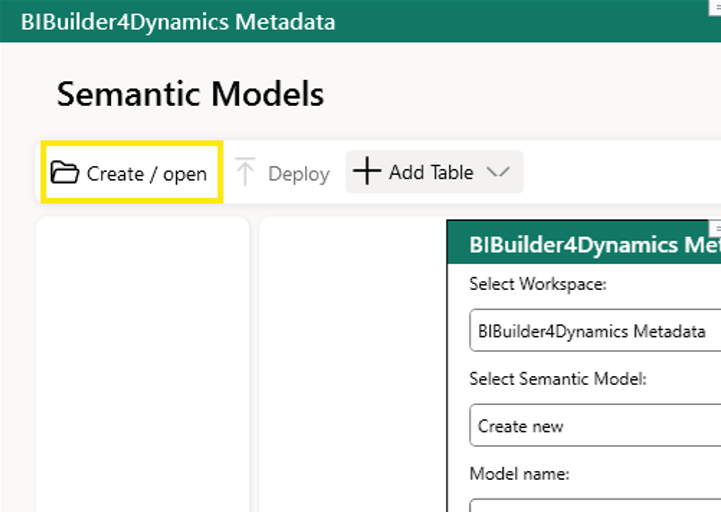
Select an existing semantic model or create a new one

Screenshot of creating a semantic model in BIBuilder4Dynamics

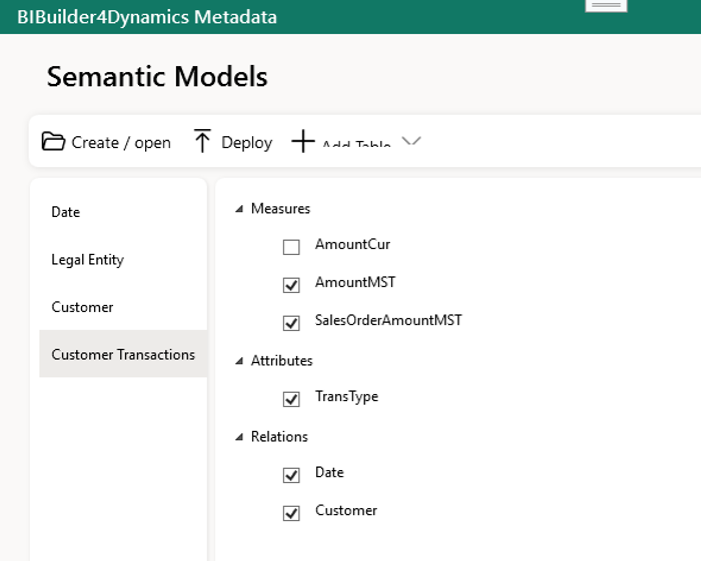
Add tables from the data warehouse and choose which measures, attributes, and relationships to include

Screenshot of selecting measures and attributes for a semantic model in BIBuilder4Dynamics

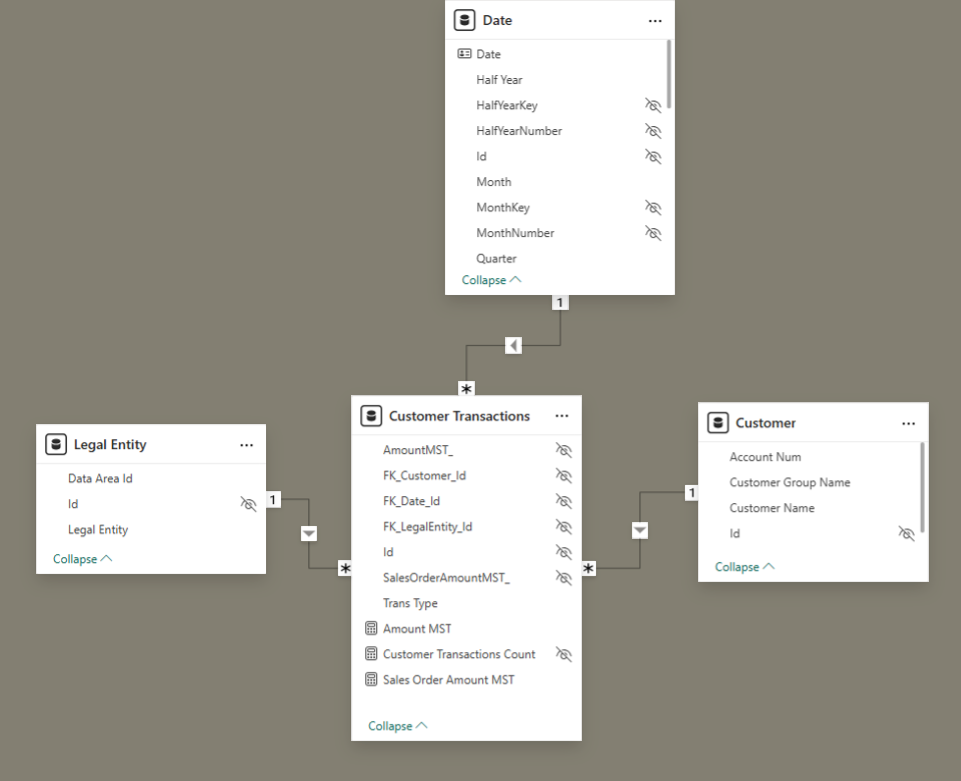
BIBuilder4Dynamics automatically generates a well-structured semantic model

with predefined measures (not inferred), hidden technical keys, properly defined relationships, and built-in best practices such as a dedicated date dimension

Screenshot of a semantic model diagram in BIBuilder4Dynamics

BIB Bot examples

Explore how BIB Bot combines AI with deep knowledge of your Dynamics 365 environment. By leveraging both its built-in expertise and metadata from the connected instance, BIB Bot can answer questions, analyze data structures, and help users navigate even complex Dynamics implementations.


Can you tell me how historical exchange rates are stored?

Yes. In D365 Finance and Operations, historical exchange rates are stored as effective-dated records, not as a separate “history” table.

Main tables

ExchangeRateCurrencyPair
This table stores the currency pair and exchange rate type, for example:

  • From currency
  • To currency
  • Exchange rate type
  • Display factor

It identifies what rate set the record belongs to.

ExchangeRate
This table stores the actual rate value over time, including:

  • ExchangeRate
  • ValidFrom
  • ValidTo

This is where the history lives. Multiple rows can exist for the same currency pair and rate type, each valid for a different date range.

How history works

For the same currency pair:

  • one record is valid from date A to date B
  • another record is valid from date C to date D
  • and so on

So if the rate changes, a new effective-dated row is added rather than overwriting the old one.

Important detail
The relation from ExchangeRateCurrencyPair to ExchangeRate is date-interval filtered, which means the system can show the current applicable rate automatically. If you want full history, you should use the ExchangeRate table with its ValidFrom and ValidTo fields.

Typical fields to use in reporting
For an exchange rate history extract, the most useful fields are:

  • FromCurrencyCode
  • ToCurrencyCode
  • ExchangeRateType
  • ExchangeRate
  • ValidFrom
  • ValidTo
  • ExchangeRateDisplayFactor

If you want, I can help you design a BIBuilder4Dynamics extract for exchange rate history.

I need a simple data extract with customer master data

Proposed customer master data extract

I’ve proposed a Dimension extract based on CustTable for customer master data.

Included columns from CustTable

  • AccountNum
  • CustGroup
  • Currency
  • Blocked
  • PaymTermId
  • DlvMode
  • TaxGroup
  • PartyCountry
  • PartyState
  • CreditMax

Related tables included

  • DirPartyTable via DirPartyTable_FK
    • Name as CustomerName
    • NameAlias as SearchName
  • CustGroup via CustGroup
    • Name as CustomerGroupName

Why this is a good simple extract
This gives you the core customer master fields needed for reporting:

  • customer number
  • customer name
  • customer group
  • currency
  • payment terms
  • delivery mode
  • tax group
  • blocked status
  • credit limit
  • country/state

If you want, I can also help you make it a little richer by adding:

  • address information
  • contact person
  • invoice account
  • credit management fields

Can you add the primary address country name to the customer extract?

Done – I added the primary address country name to the CustTable customer extract.

What was added
I extended the customer extract through the primary address chain:

  • CustTable
    • DirPartyTable relation
      • LogisticsLocation_PrimaryAddress
        • Location
          • Country
            • Country_FK
              • LongName as PrimaryAddressCountryName

Result
You now have the country name for the customer’s primary address in the extract.

If you want, I can also add:

  • the primary address country code
  • the primary address state/province
  • the primary address city

Please add project manager to the projects extract

Done – I added Project Manager to the ProjTable projects extract.

What was added

  • ProjTable -> HcmWorker using the WorkerResponsible relation
  • Added ProjectManagerPersonnelNumber
  • Added the current person name through:
    • HcmWorker -> DirPerson
    • DirPerson -> DirPersonName
  • Added:
    • ProjectManagerFirstName
    • ProjectManagerMiddleName
    • ProjectManagerLastName

Note
The project manager on ProjTable is stored as WorkerResponsible, so I used that field to bring in the worker and their current name.

If you want, I can also help add:

  • project controller
  • sales manager
  • project manager title or position
  • or the manager on related project fact tables

Pricing examples

The subscription price for BIBuilder4Dynamics is based on a base fee plus the number of full user licenses in Dynamics 365 Finance and Operations.

Full user licenses in Dynamics 365 Finance and Operations: 25

€720 /month

Full user licenses in Dynamics 365 Finance and Operations: 100

€870 /month

Full user licenses in Dynamics 365 Finance and Operations: 250

€1180 /month

Book your demo today

Interested in seeing BIBuilder4Dynamics in action? Book a personalized demo and discover how you can accelerate the development of Microsoft Fabric analytics solutions for Dynamics 365 Finance and Operations. We’ll walk you through the platform, answer your questions, and show how it can fit your organization’s needs.

Reporting and Analytics

With the data foundation in place, organizations can rapidly deliver interactive reports and dashboards that transform Dynamics 365 data into actionable business insights. The result is faster access to information, improved visibility, and better decision-making.

close-up of SCALES colleague

Please accept statistics cookies to view this interactive dashboard.

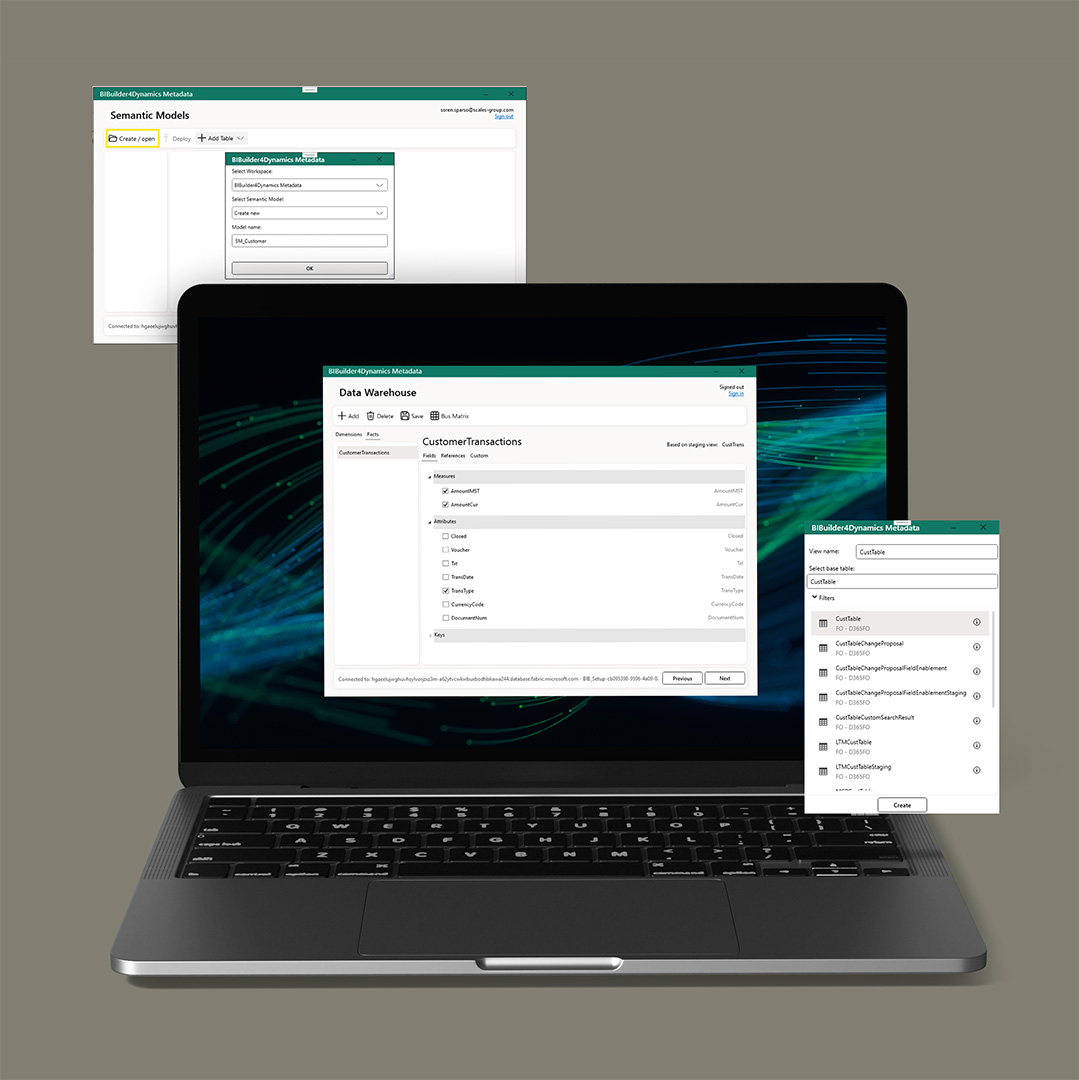
BIBuilder4Dynamics shown on a laptop screen

Interested in seeing BIBuilder4Dynamics in action?

Get in touch and we’ll be happy to arrange a personalized demonstration, answer any questions you may have, and help you get started with a trial.